Construction scheduling that your crew can actually follow
By the Hewer team · · 2 min read
A schedule only works if everyone sees the same one. When the office has a whiteboard, the owner has a phone calendar and the crew has a group chat, somebody always shows up at the wrong house. Hewer keeps one calendar for the whole company, tied to the jobs themselves.
Four views of the same schedule
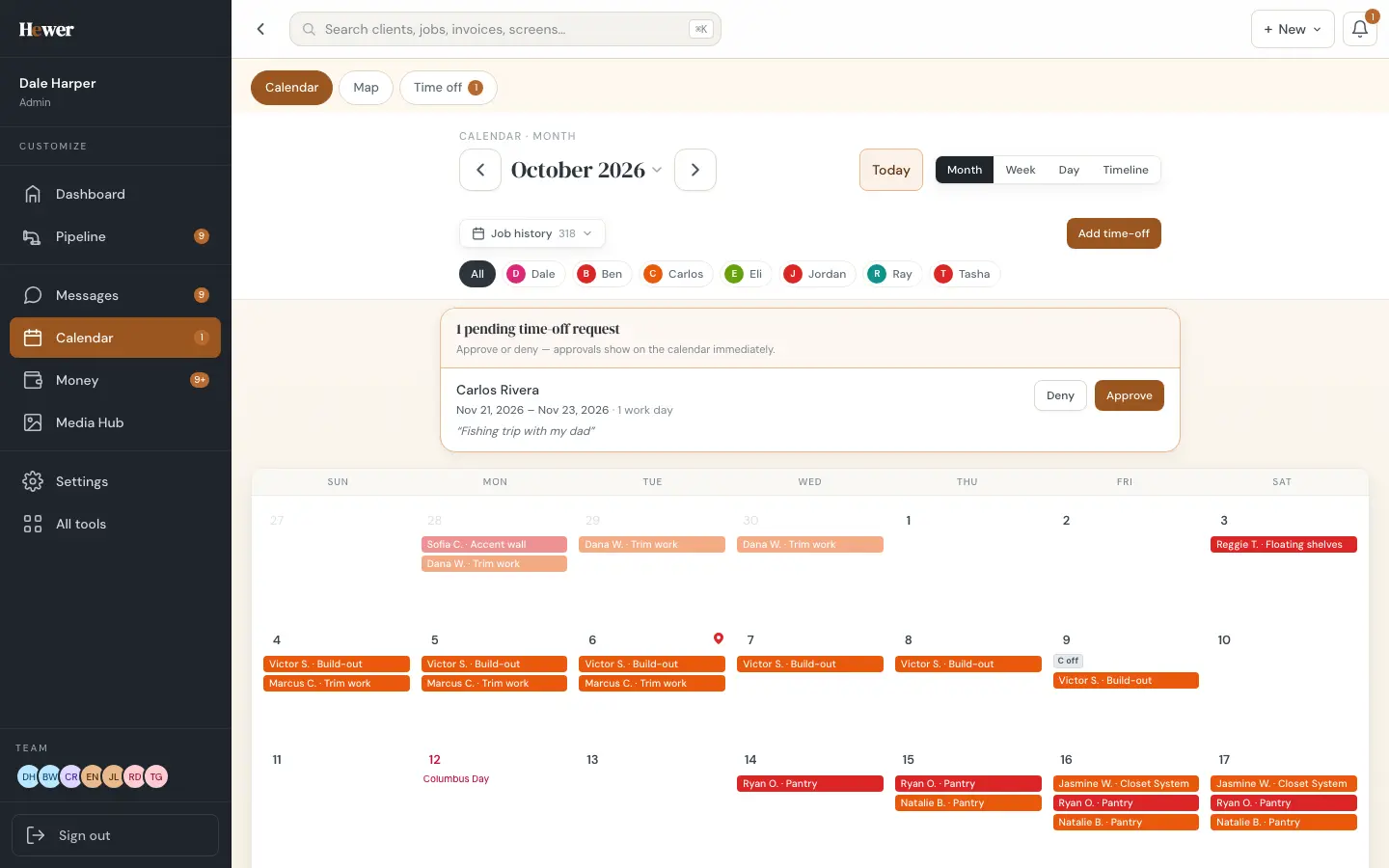
- Month for the big picture: which weeks are full and where the gaps are.
- Week for planning the crew: each day shows the job, the address and who is on it.
- Day for today's run, in order.
- Timeline for long jobs that span weeks, so you can see what overlaps.
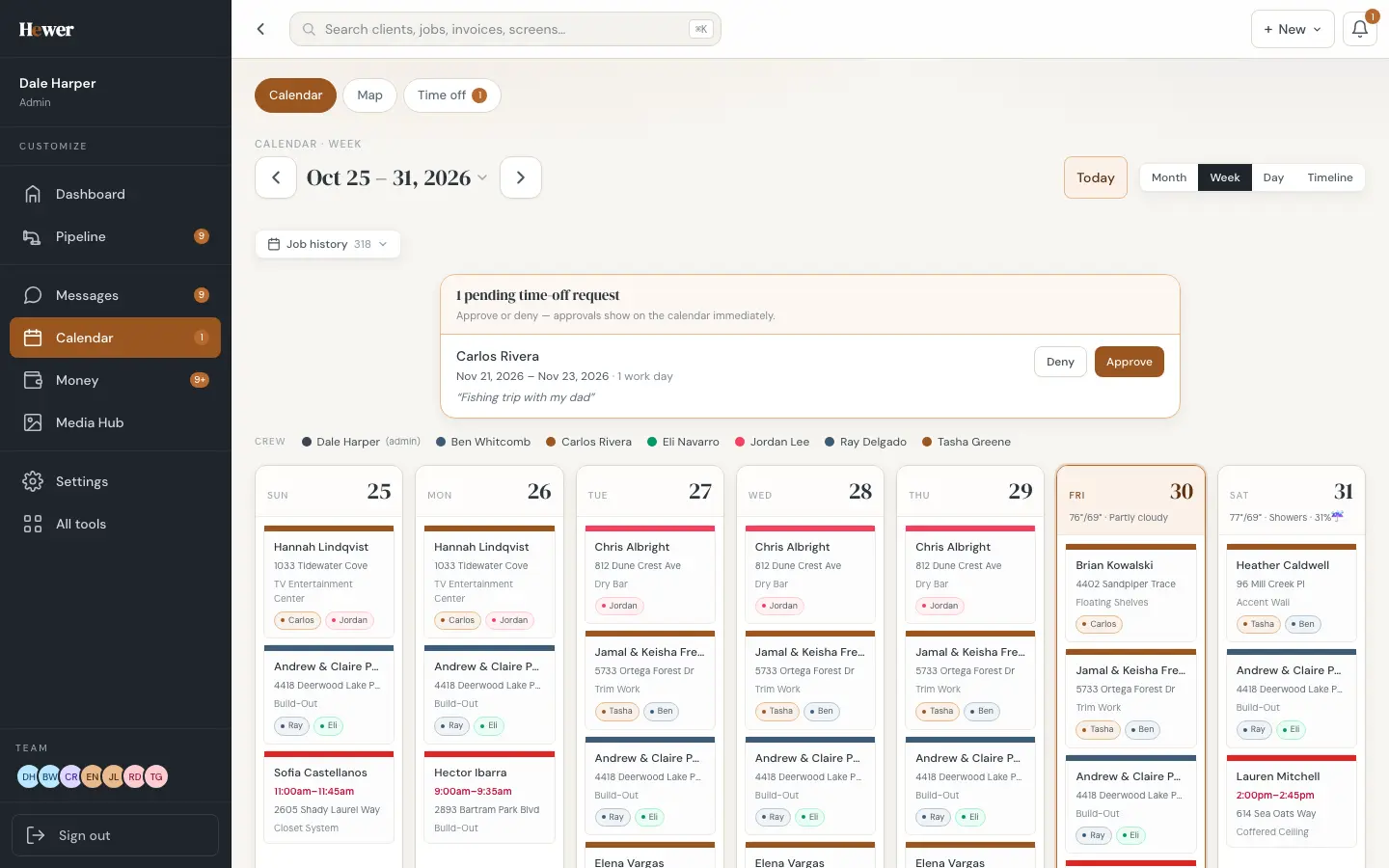
Drag to reschedule
Rain on Thursday? Drag the job to Friday. The job's dates update everywhere: on the job record, in the crew app and on the customer's portal. A job history strip shows what has already happened on that job so a move doesn't hide the past.
Built around your crew's capacity
You tell Hewer how many jobs your company can run in a day. The calendar uses that number when you book work, and so does the customer portal when a customer picks their own start date. Filter the calendar by crew member to see one person's week.
Weather and time off
A five-day forecast sits on the calendar, so you can see a wet week coming before you pour or paint outside. Crew members request time off from their app; you approve or deny it from the banner at the top of the calendar, and approvals show on the schedule straight away.
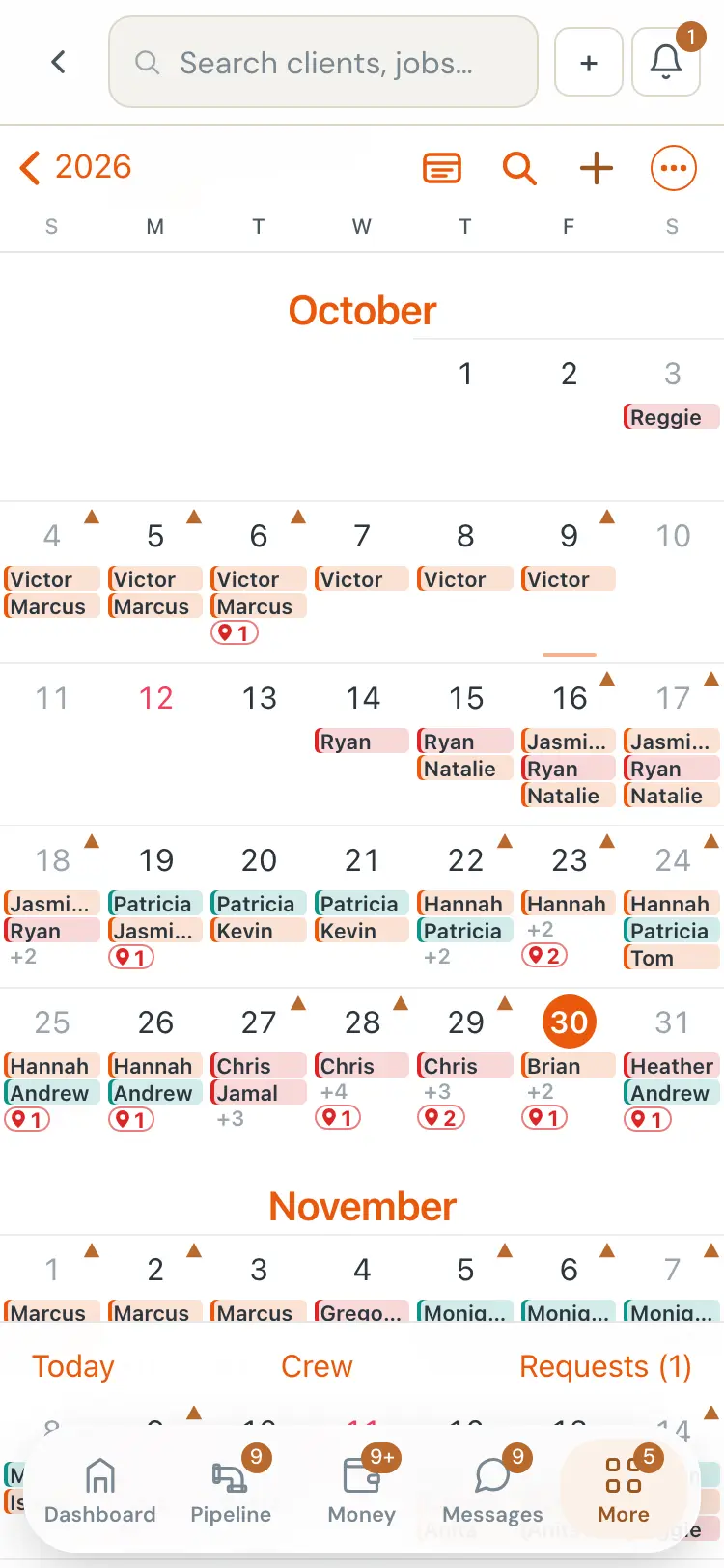
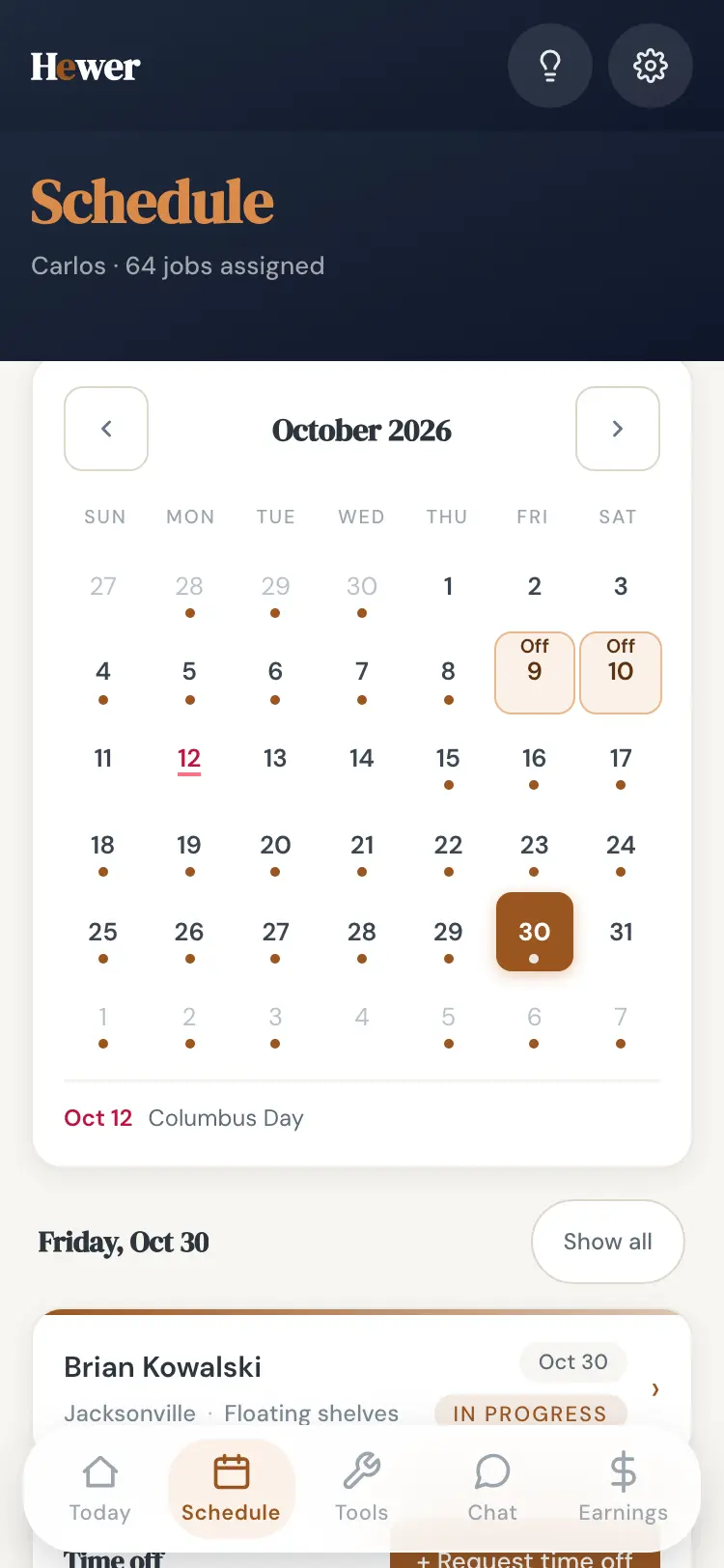
Google Calendar and the customer's calendar
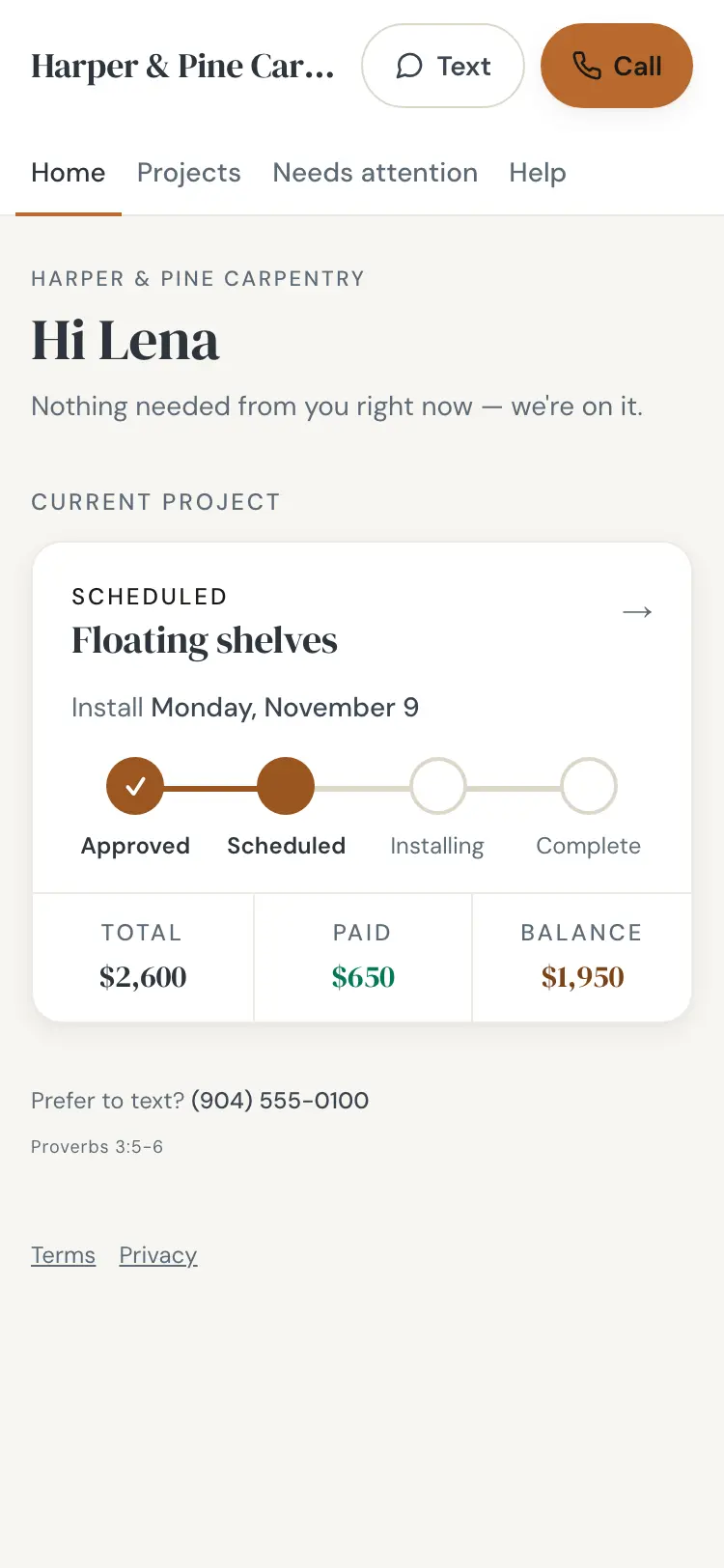
Confirmed dates can sync to Google Calendar, so the schedule also shows up where you already look. Customers get an add-to-calendar link for their start date, which cuts down on the "are you still coming Tuesday?" calls.
The map
A Map tab puts the week's jobs and site visits on a map, which helps when you are deciding who should take the visit across town.
Scheduling connects to everything else in Hewer: the crew app shows each person their day, and the customer portal shows the customer when you are coming. See the features page for the rest, or try it free.
Questions
Can my crew see the schedule on their phones?
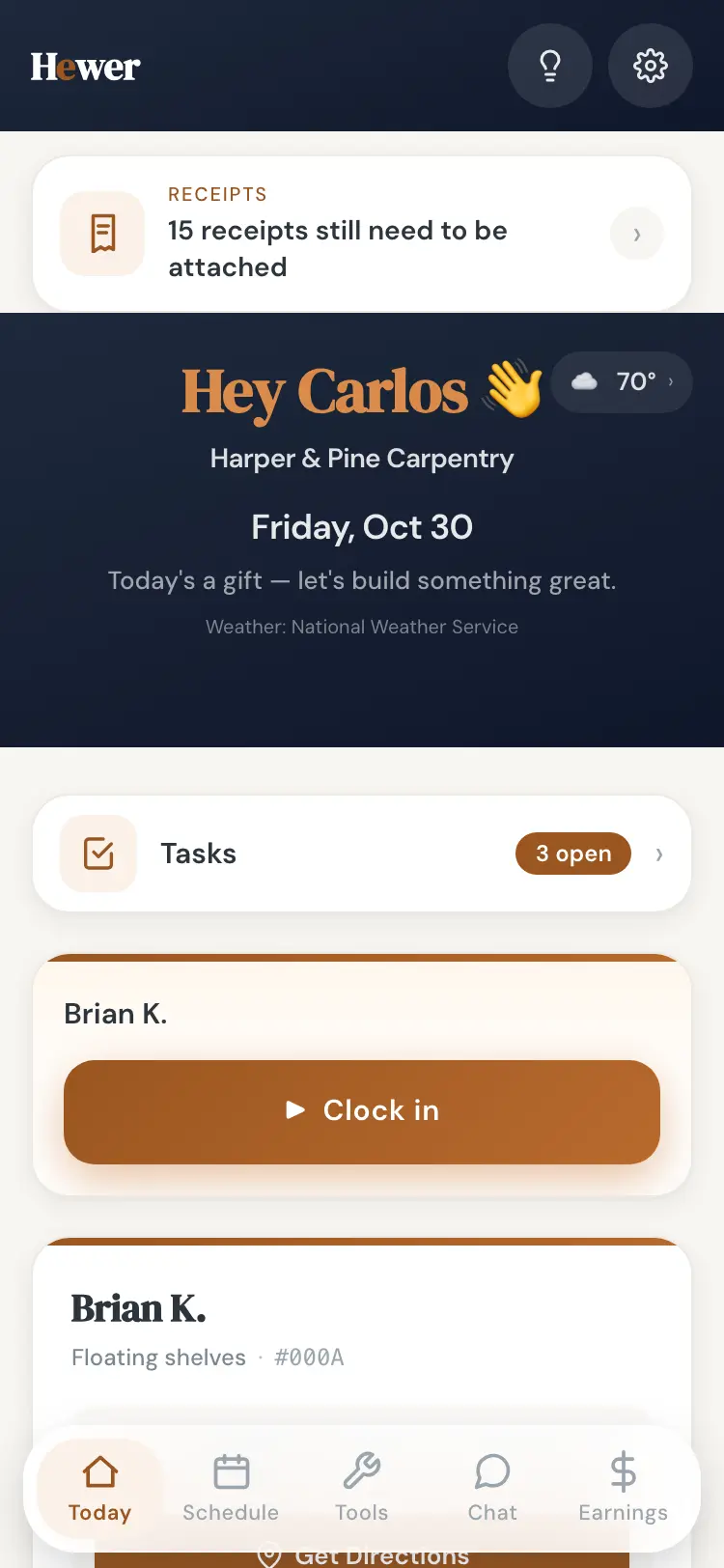
Yes. Each crew member sees their own schedule in the crew app, with today's jobs in order, directions and the office's notes.
Does Hewer sync with Google Calendar?
Yes. Confirmed job dates can sync to Google Calendar.
Can customers pick their own start date?
Yes, if you switch it on. After the contract is signed and the deposit is paid, the customer can book an open start date on their portal, limited by your daily crew capacity.