The crew app: what your crew sees at 7am
By the Hewer team · · 2 min read
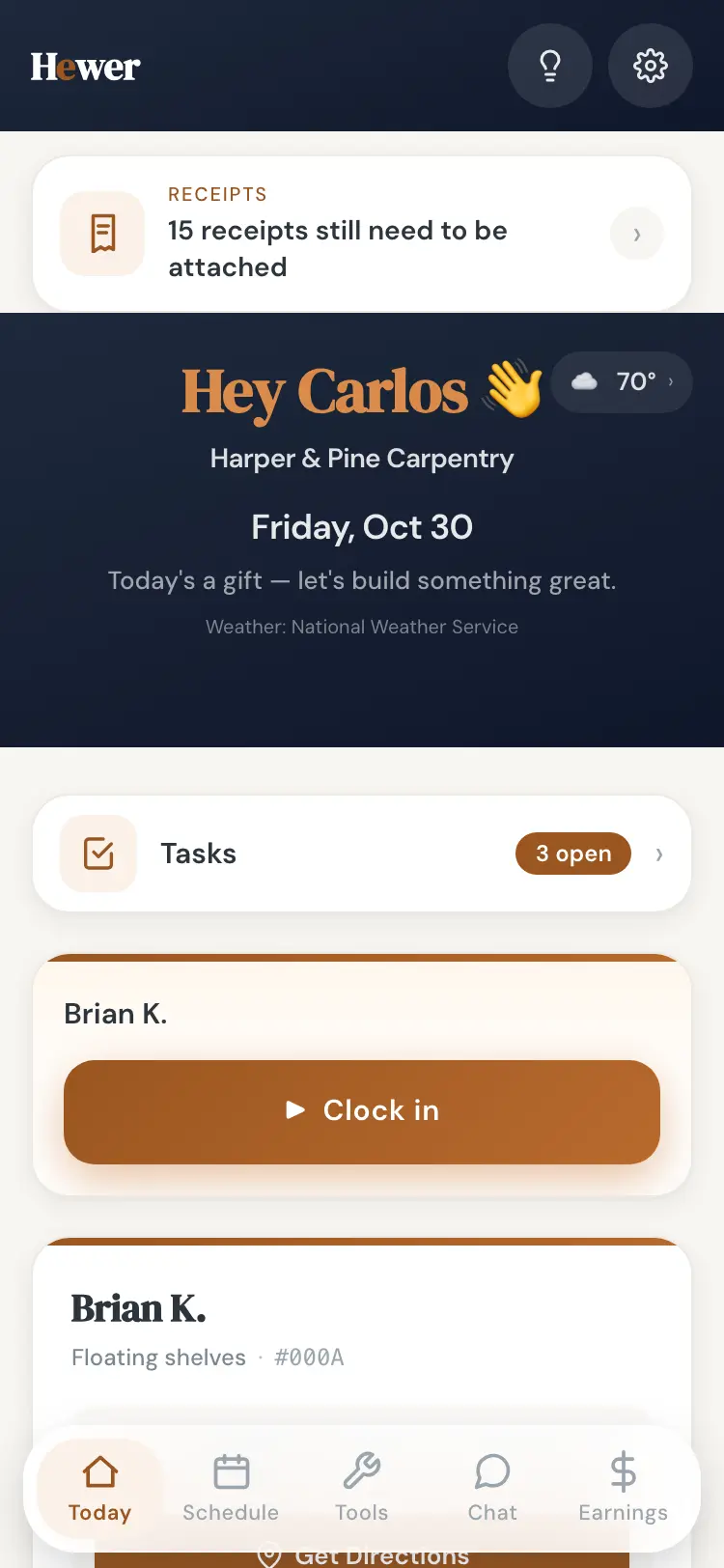
A crew app only helps if the crew opens it. Hewer's is built to be the one app they need on a job day: where to go, what to do, clock in, take photos, ask for material, and check what they've earned. It runs on iPhone and Android, and each person picks English, Spanish or Russian.
Today: the first screen they see
The crew app opens on today. It shows the weather, today's jobs in order with directions, the office's notes on the scope, and a big Clock in button. If they have open tasks or receipts to attach, those sit at the top so they don't get forgotten.
Clock-in that payroll can trust
One tap clocks in for work, on site, or from home. Home and travel modes check against the crew member's address and track the drive, so drive time is counted the way you pay it. Days with more than one job are handled. On Friday the hours are already added up in the payroll week view, with no timesheets to chase.
Photos that are worth keeping
Progress photos taken in the app are captioned automatically and checked for quality. If a shot is dark or blurry, the app says so and suggests a retake while they are still standing there. The good ones land on the job and in your Media Hub, tagged by customer and stage.
Supply requests and tasks
Short a box of screws or a sheet of plywood? They tap the material and the office gets the request. Tasks go both ways: the office can hand a crew member a task, and they can mark it done from the app.
Earnings, without the pricing
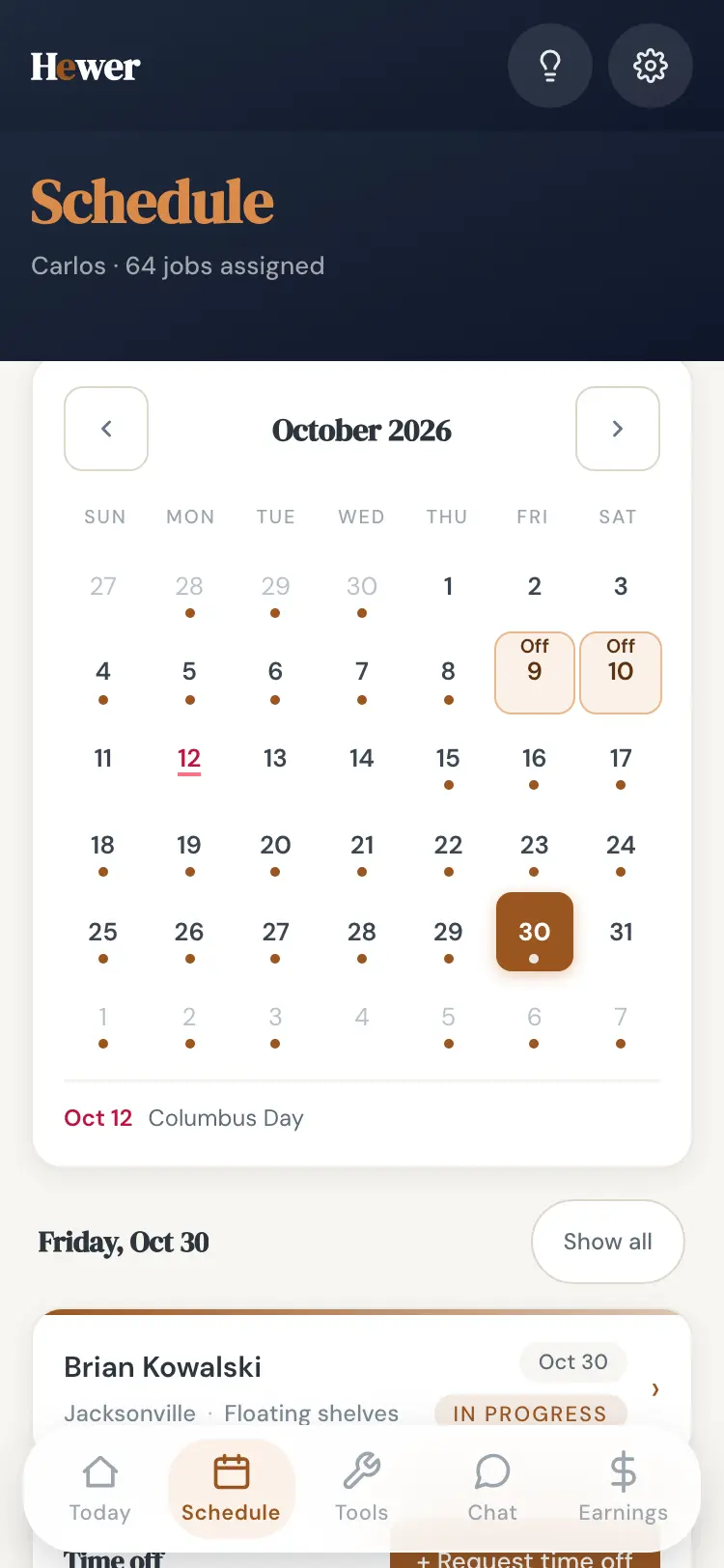
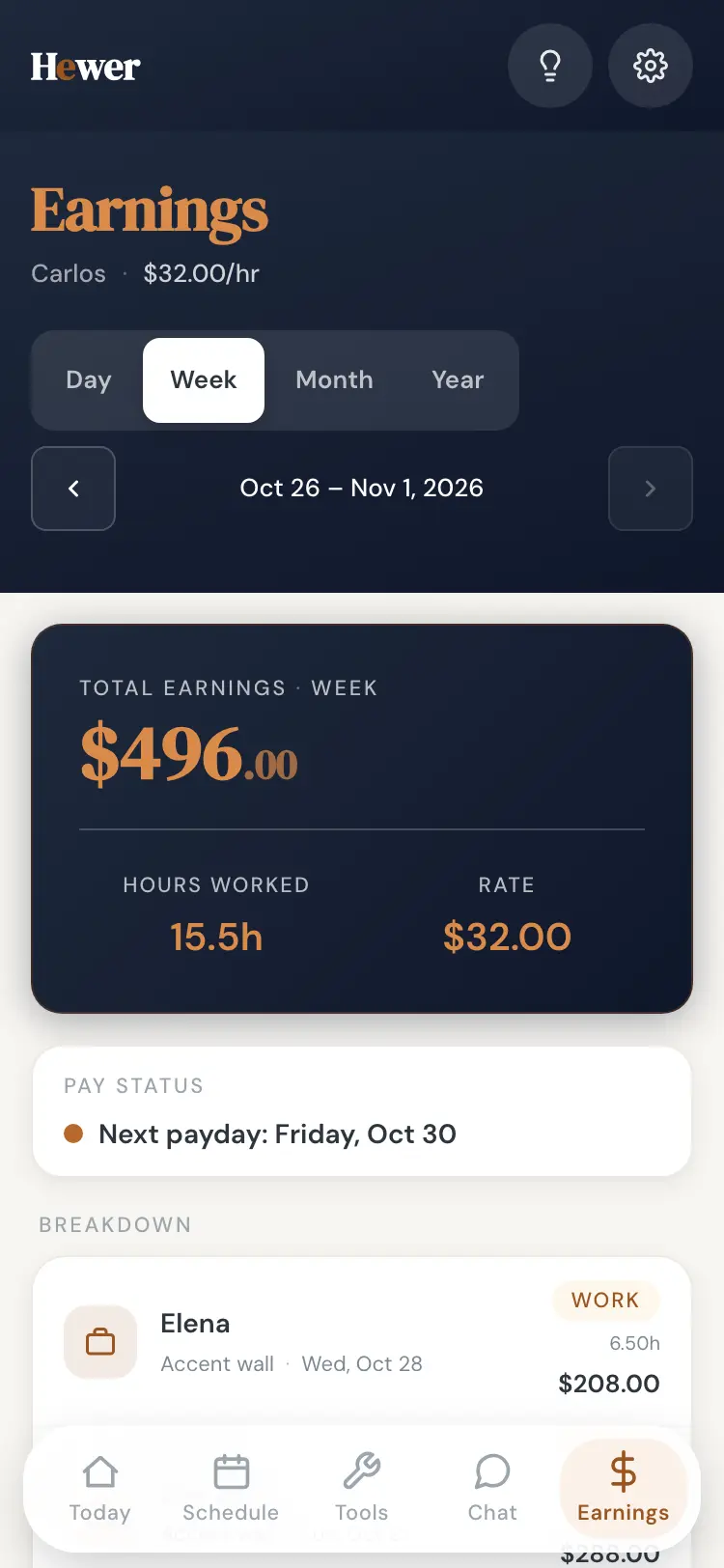
Each crew member sees their own hours, bonuses and profit share by day, week, month or year, and when the next payday is. They never see what you charged the customer.
Field tools and team chat
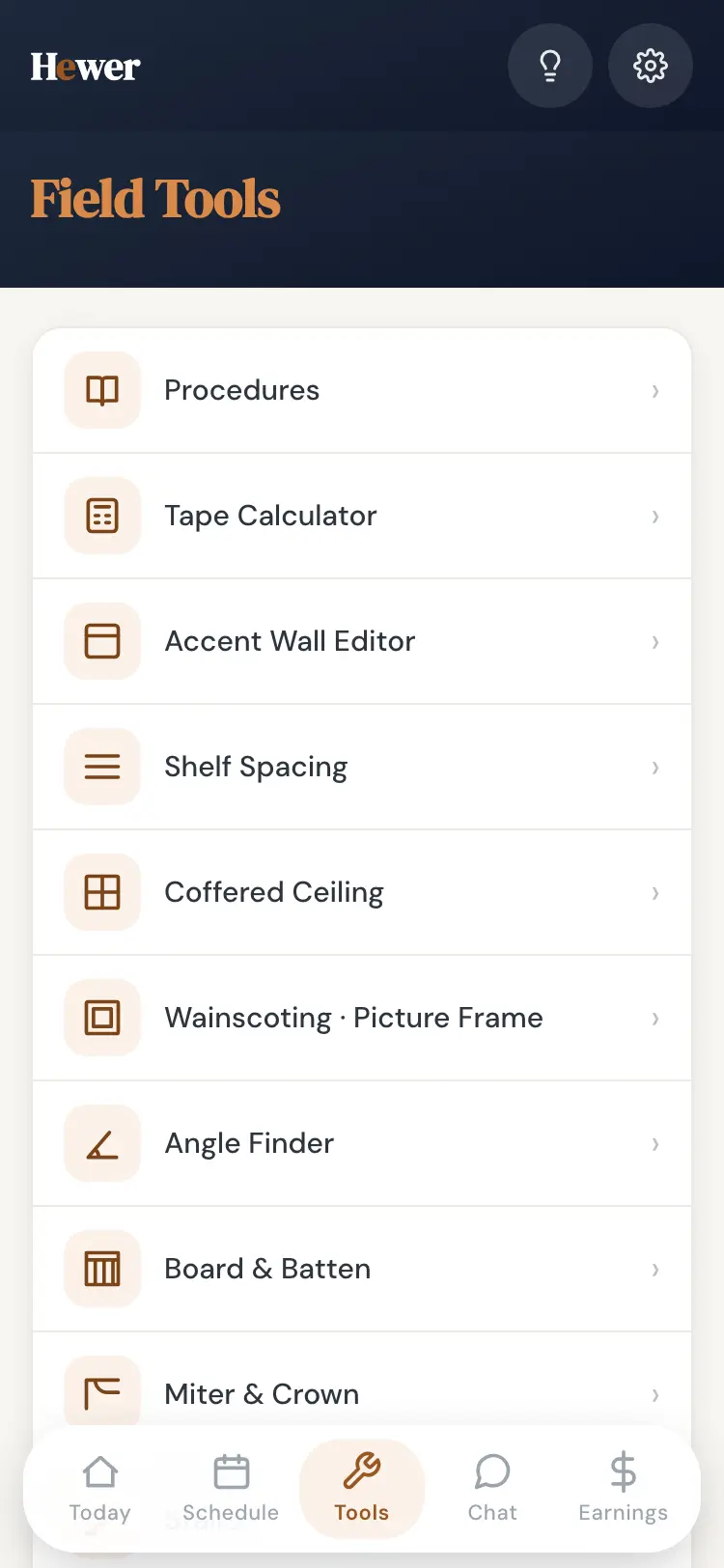
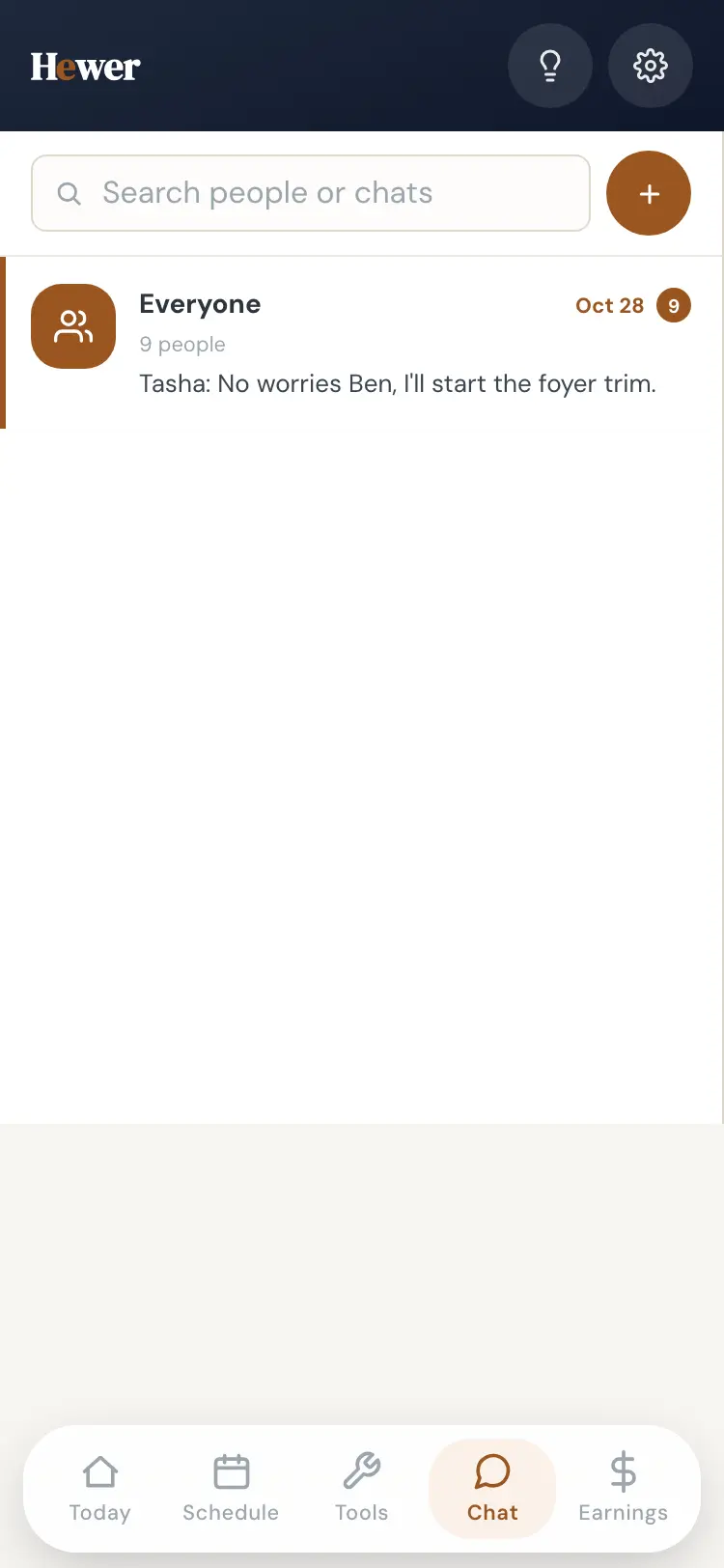
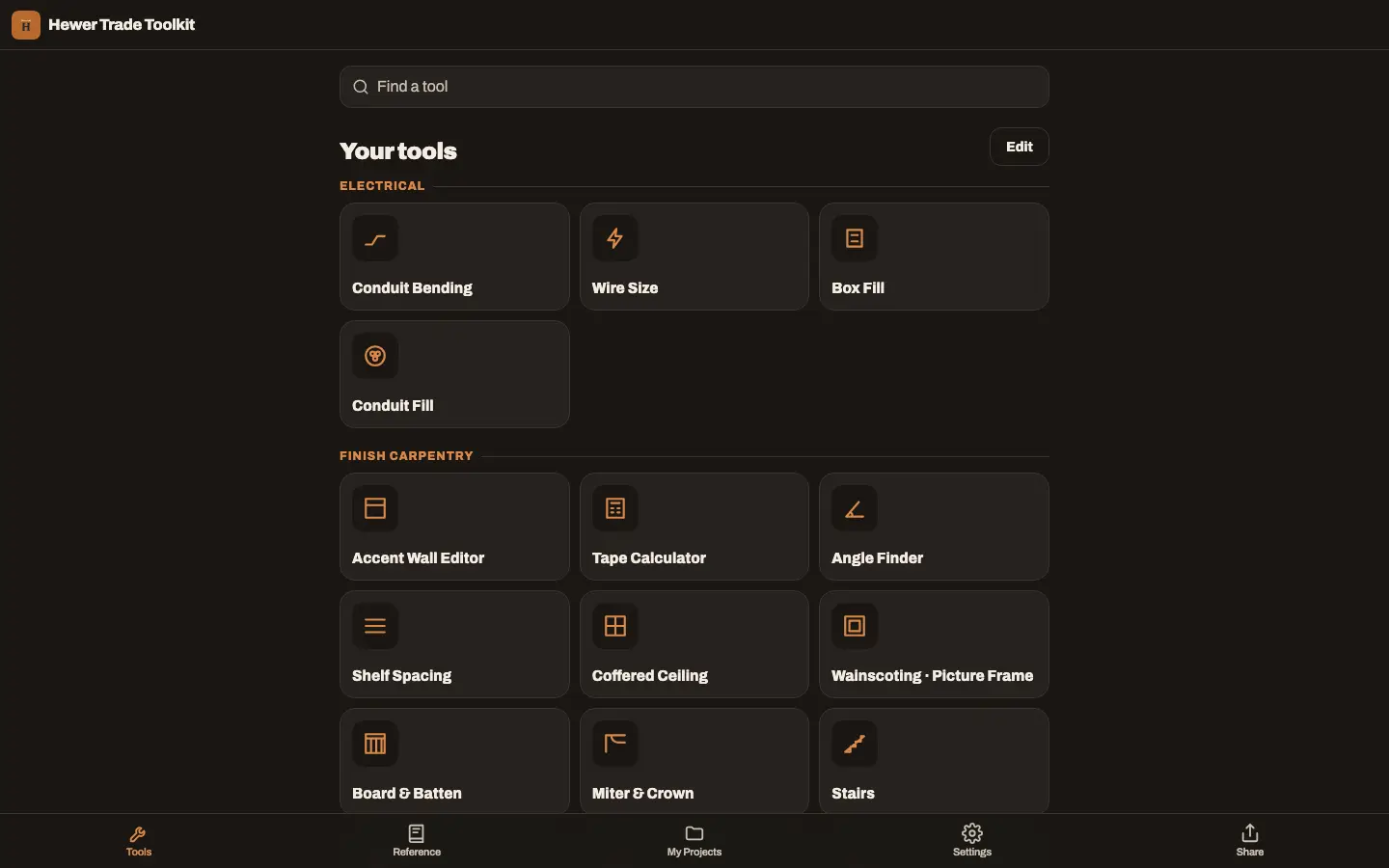
The Tools tab holds your company's written procedures and the layout calculators from the Hewer Trade Toolkit, so the crew can work out baluster spacing or a stair layout on the spot. If you switch on team chat, the Chat tab gives the crew an Everyone chat, one-to-one messages and groups, kept separate from customers.
Works with bad signal
Basements and new builds often have no signal. The crew app keeps working: clock-ins, photos and supply requests wait on the phone and go up when the signal comes back.
The crew app is included with every seat. See how the office side plans the week in Construction scheduling, or start a trial and invite your crew.
Questions
Does each crew member need a seat?
Yes, each person who signs in uses a seat. The plan includes five seats, and more can be added at any time on the pricing page's rates.
Which languages does the crew app support?
English, Spanish and Russian. Each crew member picks their own.
Can crew members see job prices?
No. They see the job, the address, the scope notes and their own pay, never what the customer is being charged.